
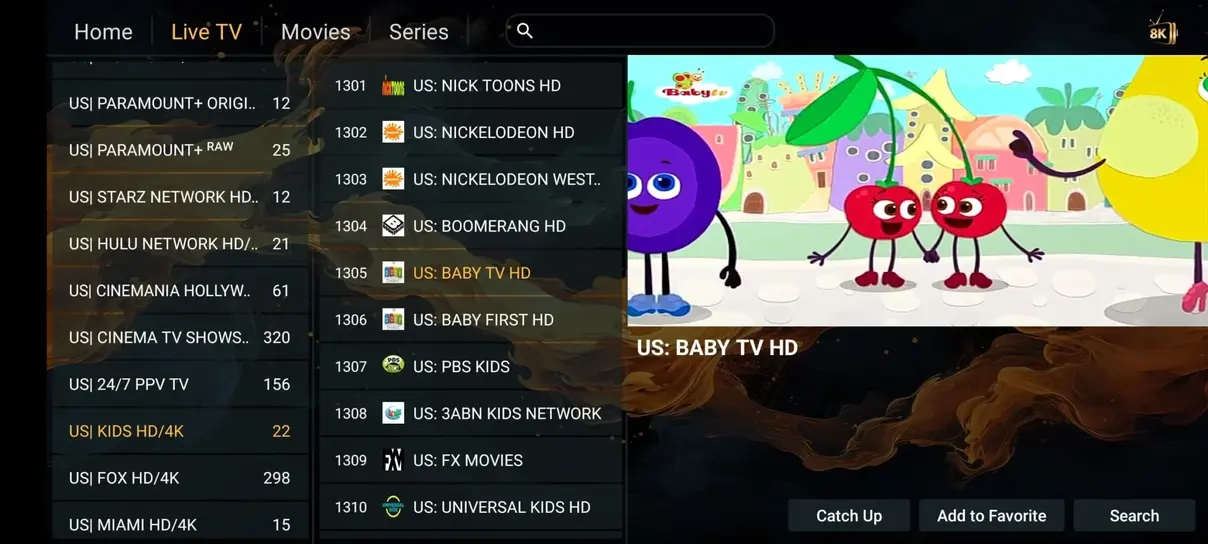
Two different pieces of your television setup
M3U and EPG often appear together in an activation message, but they solve different problems. An M3U playlist tells a compatible player what streams are available and where to request them. An electronic program guide supplies schedule information such as program titles, start times, and descriptions. A player can sometimes show channels even when its guide is empty.
Understanding that separation helps you troubleshoot accurately. If the channel list is missing, begin with playlist import or account authentication. If channels play but program names do not appear, focus on the guide source, matching identifiers, and time settings. Replacing the entire setup is rarely the best first response to a single missing part.
What an M3U playlist contains
A playlist is a text-based list of media references, often accompanied by labels and grouping metadata. Extended M3U data may include channel names, logos, and identifiers that the player uses to organize the screen. The actual media is requested from the referenced stream addresses; the playlist is not a downloaded copy of every channel.
A service URL can generate a current playlist for your account when the player refreshes it. Saving a local copy may create a snapshot that does not automatically include later changes. Use the method recommended for your account, and avoid editing service-generated fields unless you understand how your player handles updates and channel identity.
Why a playlist URL needs careful handling
A full M3U URL can contain a username, password, token, or account identifier. Treat it like a credential rather than an ordinary public website address. Anyone who receives it may be able to attempt access or expose account information. Do not paste it into public forums, review posts, or unknown playlist-checking websites.
When asking for help, share the error message and the shape of the problem first. If a screenshot is useful, hide private query parameters and account fields. Keep the original activation message in a private place so you can restore the configuration without searching through old screenshots that may have been shared elsewhere.
M3U versus Xtream account entry
Xtream-style login commonly uses separate fields for the server address, username, and password. A compatible player may then organize live TV, series, movies, and guide data through that account interface. M3U login instead asks for the complete playlist address. The available method depends on both the account and the player.
Do not mix the two forms. A server address is not always a full playlist URL, and a full playlist URL does not belong in a username field. Preserve the supplied protocol and port where required. If your player offers both options, follow the activation instructions rather than choosing based on which screen has fewer fields.
Adding the playlist cleanly
Create a new named source in the player and choose the supported account format. Paste the supplied values carefully, checking for leading or trailing spaces introduced by a mobile clipboard. Give the account a recognizable label so you can distinguish it from a trial or an old subscription later.
Save the configuration and let the first import finish. A large catalog can take time to process on slower devices. Repeatedly pressing refresh or creating duplicate accounts may make the interface more confusing without improving the import. Once the list appears, test a single familiar live channel before spending time arranging favorites and hiding groups.
Adding and refreshing guide data
Some players obtain guide data automatically through the account. Others require a separate EPG source, often an XMLTV-compatible URL. Use the guide address supplied for your subscription and associate it with the correct playlist when the app provides that setting. A guide imported for an unrelated lineup may not match your channel identifiers.
Refresh the EPG separately if the app allows it, then inspect a few channels with known schedules. An empty entry for one station does not necessarily indicate a failed download. Coverage can vary by channel and date. Note whether the guide is entirely absent, partly populated, or shifted in time before changing settings.
Channel identifiers make the connection
The player needs a way to connect a playlist channel with the corresponding schedule entry. Metadata identifiers are often more important than the visible channel name. Two channels can share a similar display name while representing different regions or resolutions, and manually renaming one may not repair a mismatched identifier.
If guide information appears under the wrong station, check whether the player has a channel-matching setting. Avoid assigning a convenient-looking schedule merely to fill an empty row; it may show the wrong programs. Report the affected channel and guide behavior to support so the source mapping can be checked at the appropriate level.
Time zones and daylight-saving changes
Guide times depend on the schedule’s timestamps and the player’s interpretation of the local time zone. Start by ensuring that the device clock and time zone are correct. An incorrect system clock can affect more than the EPG, including secure connections and account requests.
If the guide is consistently offset after the system settings are correct, inspect the app’s EPG offset control. Make one measured adjustment and compare a known current program. Avoid compensating in both the device and player at once, because the corrections can stack. Recheck after daylight-saving changes or travel across time zones.
Refresh intervals and large libraries
A playlist refresh updates available channels and catalog entries, while an EPG refresh updates schedules. More frequent refreshing is not always better. Importing a large library repeatedly can slow an older device, consume bandwidth, and interrupt navigation. Use the developer’s recommended interval or a sensible scheduled refresh.
If the app becomes slow during startup, check whether it loads every category and many days of guide history at once. Supported category filtering or a shorter guide window may help. Keep a record of the settings you change so you can restore them. Do not delete the only working account configuration before confirming that you can recover the activation details.
Favorites and playlist changes
Favorites are often stored by the player, not by the subscription itself. A channel source can change its identifier or be moved to another group during an update, which may leave an old favorite pointing to a missing item. Search the current list before assuming the channel has disappeared entirely.
Some players offer export or backup features for personal settings. If yours does, understand whether the backup includes only preferences or also private account details. Store it securely and avoid uploading it to an unknown service. When moving to a different app, expect to rebuild some favorites because personal databases are not universally compatible.
Common symptoms and useful next checks
An authentication error suggests checking account fields, expiration, and screen usage. A successful import with no playback suggests a different path involving the stream, player, or network. A working stream with an empty guide points toward EPG configuration. These distinctions help you avoid treating every symptom as the same failure.
Record the exact error and test one change at a time. Compare another channel, confirm the device clock, and check whether the account works on another supported device within the screen allowance. Do not repeatedly request replacement credentials unless support identifies an account issue. The troubleshooting guide provides a wider diagnostic sequence.
Keep the setup maintainable
After the account works, save a short private note with the app name, device model, account method, and location of your activation message. You do not need to put the password into every note. Record any intentional guide offset or custom category setting so a future app reset is easier to understand.
Use the installation page for device-specific menu paths and the pricing page when changing the number of simultaneous screens. Playlist settings do not increase account capacity. If you need help, describe whether the issue concerns login, channel listing, playback, or the schedule; that vocabulary gives support a much clearer starting point.
For a shared household, name each player configuration consistently and record which device it belongs to. This makes renewal and support conversations easier without exposing the account password.